Excel FLOOR Function
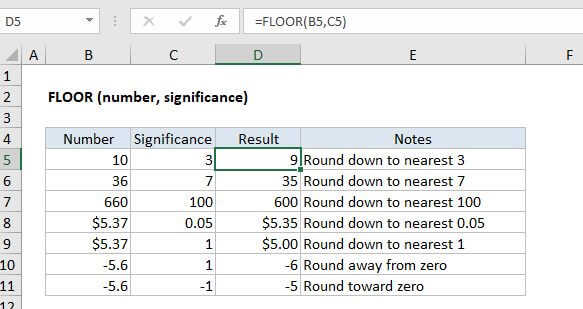
Summary
The Excel FLOOR function rounds a given number down to the nearest specified multiple. FLOOR works like the MROUND function, but FLOOR always rounds down.
Purpose
Round a number down to the nearest specified multiple
Return value
A rounded number.
Syntax
=FLOOR (number, multiple)
Arguments
- number - The number that should be rounded.
- multiple - The multiple to use when rounding.
Usage notes
The Excel FLOOR function rounds a number down to a given multiple. For example, the following could be used to round a price in A1 down to the nearest 5 dollars.
=FLOOR(A1,5)
FLOOR can be a can be a useful function to set pricing after currency conversion, discounts, etc. For example, the formula below will round a value in A1 down to the nearest 1 dollar, then subtract 1 cent, to get a price like $2.99, $5.99, $49.99, etc.
=CEILING(A1,1) - 0.01
If you need more control over how FLOOR rounds negative numbers, see the FLOOR.MATH function.
FLOOR vs FLOOR.MATH
The FLOOR function differs from the FLOOR.MATH function in these ways:
- FLOOR.MATH provides a default significance of 1, rounding to nearest integer.
- FLOOR.MATH provides support for rounding negative numbers (toward zero, away from zero).
- FLOOR.MATH appears to use the absolute value of the significance argument. Changing the sign of significance has no effect on the result.
Notes
- FLOOR works like the MROUND function, but FLOOR always rounds down.
- With a positive number, the value is rounded down toward zero.
- With a negative number, the value is rounded down away from zero.
- The FLOOR function can be a good way to can be a good way to set pricing after currency conversion, discounts, etc.