Excel DVARP Function
Summary
The Excel DVARP function returns the variance of an entire population extracted from records that match given criteria. If data represents the a sample only, use the DVAR function.
Purpose
Get population variance for matching records
Return value
The calculated variance
Syntax
=DVARP (database, field, criteria)
Arguments
- database - Database range including headers.
- field - Field name or index to count.
- criteria - Criteria range including headers.
Usage notes
The Excel DVARP function calculates the variance of data that represents an entire population, extracted from records matching the given criteria, where values come from a given field.
The database argument is a range of cells that includes field headers, field is the name or index of the field to get a max value from, and criteria is a range of cells with headers that match those in database.
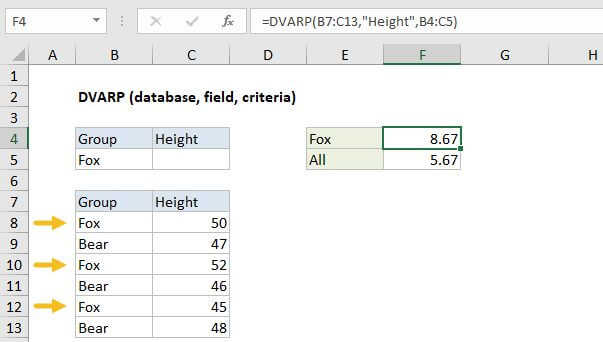
Using the example above, you can get the variance of heights for the group "Fox" with either of these formulas:
=DVARP(B7:C13,"Height",B4:C5) // field by name=DVARP(B7:C13,2,B4:C5) // field by index
The variance for the entire data set, shown in F5, is calculated with the VAR.P function:
=VAR.P(C8:C13)
Criteria options
The criteria can include a variety of expressions, including some wildcards. The table below shows some examples:
| Criteria | Behavior |
|---|---|
| Red | Match "red" or "RED" |
| Re* | Begins with "re" |
| 10 | Equal to 10 |
| >10 | Greater than 10 |
| <> | Not blank |
| <>100 | Not 100 |
| >12/19/2017 | Greater than Dec 19, 2017 |
Note: Support for wildcards is not quite the same as with other functions like COUNTIFS, SUMIFS, MATCH etc. For example, the pattern ??? will match strings with 3 exactly characters in more modern functions, but not in the database functions. If you are using wildcards, test carefully.
Multi-row criteria
The criteria range for DVARP can include more than one row below the headers. When criteria includes more than one row, each row is joined with OR logic, and the expressions in a given criteria row are joined with AND logic.
Notes:
- DVARP is mean to calculate variance for data that represents an entire population. Use the DVAR for a sample.
- DVARP supports some wildcards in criteria
- Criteria can include more than one row (as explained above)
- The field argument can be supplied as a name in double quotes ("") or as a number representing field index.
- The database and criteria ranges must include matching headers.