Excel MODE.SNGL Function
Summary
The Excel MODE.SNGL function returns the most frequently occurring number in a numeric data set. For example, =MODE.SNGL(1,2,4,4,5,5,5,6) returns 5.
Purpose
Get most frequently occurring number
Return value
A number representing the mode.
Syntax
=MODE.SNGL (number1, [number2], ...)
Arguments
- number1 - A number or cell reference that refers to numeric values.
- number2 - [optional] A number or cell reference that refers to numeric values.
Usage notes
The Excel MODE.SNGL function returns the most frequently occurring number in a numeric data set. Numbers can be supplied as numbers, ranges, named ranges, or cell references that contain numeric values. The MODE.SNGL function will accept up to 254 inpidual arguments.
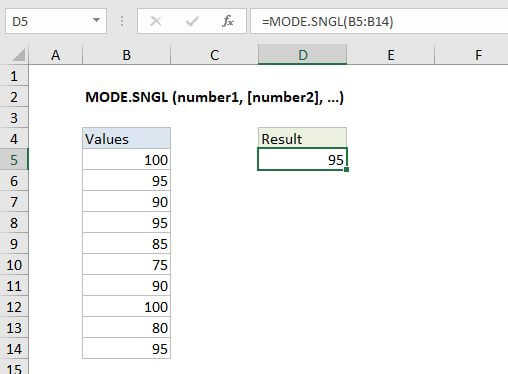
In the example shown, the formula in D5 is:
=MODE.SNGL(B5:B14)
Note: The MODE function is now classified as a "compatibility function". Microsoft recommends that MODE.SNGL or MODE.MULT be used instead.
Notes
- If supplied numbers does not contain any duplicates, MODE.SNGL will return #N/A
- The MODE function ignores empty cells, and cells that contain boolean values or text.
- Arguments can be numbers, names, arrays, or references.
- MODE.SNGL was introduced in Excel 2010.