Excel RANK Function
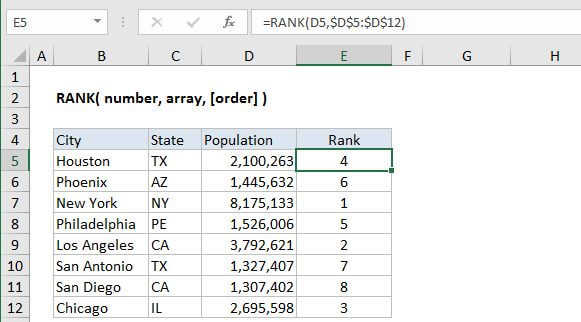
Summary
The Excel RANK function returns the rank of a numeric value when compared to a list of other numeric values. RANK can rank values from largest to smallest (i.e. top sales) as well as smallest to largest (i.e. fastest time) values, using an optional order argument.
Purpose
Rank a number against a range of numbers
Return value
A number that indicates rank.
Syntax
=RANK (number, array, [order])
Arguments
- number - The number to rank.
- array - An array that contains the numbers to rank against.
- order - [optional] Whether to rank in ascending or descending order.
Usage notes
The Excel RANK function assigns a rank to a numeric value when compared to a list of other numeric values. Use RANK when you want to display a rank for numeric values in a list. It is not necessary to sort the values in the list before using RANK.
Controlling rank order
The rank function has two modes of operation, controlled by the order argument. To rank values where the largest value is ranked #1, set order to zero (0). For example, with the values 1-5 in the range A1:A5:
=RANK(A1,A1:A5,0) // descending, returns 5=RANK(A1,A1:A5,1) // ascending, returns 1
Set order to zero (0) when you want to rank something like top sales, where the largest sales number should rank #1, and to set order to one (1) when you want to rank something like race results, where the shortest (fastest) time should rank #1.
Note: The RANK function is now classified as a compatibility function. Microsoft recommends RANK.EQ or RANK.AVG be used instead.
Notes
- The default for order is zero (0). If order is 0 or omitted, number is ranked against the numbers sorted in descending order: smaller numbers receive a higher rank value, and the largest value in a list will be ranked #1.
- If order is 1, number is ranked against the numbers sorted in ascending order: smaller numbers receive a lower rank value, and the smallest value in a list will be ranked #1.
- It is not necessary to sort the values in the list before using the RANK function.
- In the even of a tie (i.e. the list contains duplicates) RANK will use the lower rank value for each set of duplicates.