Excel RANK.AVG Function
Summary
The Excel RANK.AVG function returns the rank of a number against a list of other other numeric values. When values contain duplicates, the RANK.AVG function will assign an average rank to each set of duplicates.
Purpose
Rank a number against a range of numbers
Return value
A number that indicates rank.
Syntax
=RANK.AVG (number, ref, [order])
Arguments
- number - The number to rank.
- ref - An array that contains the numbers to rank against.
- order - [optional] Rank ascending or descending. Default is zero.
Usage notes
The Excel RANK.AVG function assigns a rank to a numeric value when compared to a list of other numeric values. It is not necessary to sort the values in the list before using RANK.AVG.
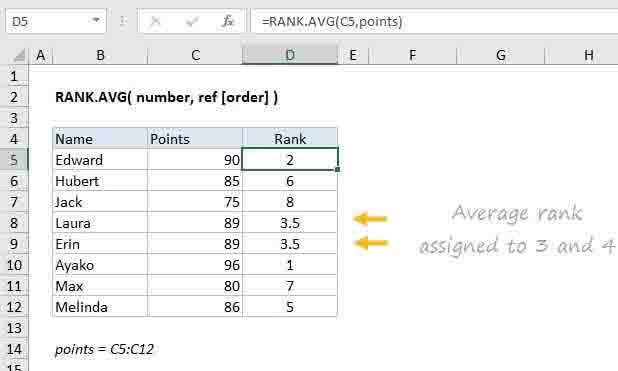
In the example shown, the formula in D5 is:
=RANK.AVG(C5,points)
where "points" is the named range C5:C12.
Controlling rank order
The rank function has two modes of operation, controlled by the order argument. To rank values where the largest value is ranked #1, set order to zero (0), or omit the order argument. To rank values so that the smallest value receives rank #1, set order to 1.
For example, with the values 1-5 in the range A1:A5:
=RANK.AVG(1,A1:A5,0) // descending, returns 5=RANK.AVG(1,A1:A5,1) // ascending, returns 1
Set order to zero (0) when you want to rank something like top sales, where the largest sales numbers should get the best rank, and to set order to one (1) to rank something like race results, where the shortest (fastest) times should rank highest.
Duplicates
When values to rank contain duplicates, the RANK.AVG function will assign the average rank to each set of duplicates. To assign the same rank to duplicates, see the RANK.EQ function.
Notes
- If order is 0 or omitted, the largest value is ranked #1.
- If order is 1, the smallest value is ranked #1.
- It is not necessary to sort the values in the list before using the RANK.AVG function.
- In the even of a tie (i.e. the list contains duplicates) RANK.AVG will assign the average rank value to each set of duplicates.