Data validation allow numbers only
Generic formula 

=ISNUMBER(A1)

Related formulas 

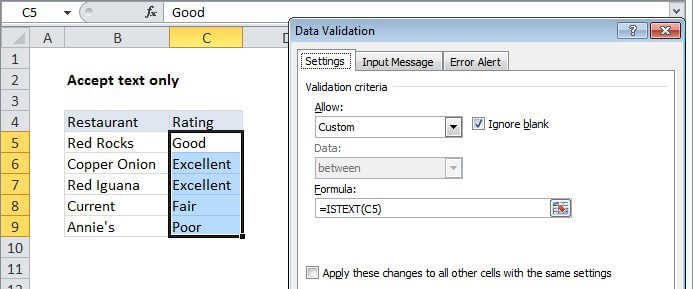
Data validation allow text only

Data validation only dates between

Explanation

Note: Excel has several built-in data validation rules for numbers. This page explains how to create a your own validation rule based on a custom formula.

To allow only numbers in a cell, you can use data validation with a custom formula based on the ISNUMBER function.

In the example shown, the data validation applied to C5:C9 is:

=ISNUMBER(C5)

How this formula works

Data validation rules are triggered when a user adds or changes a cell value.

The ISNUMBER function returns TRUE when a value is numeric and FALSE if not. As a result, all numeric input will pass validation.

Be aware that numeric input includes dates and times, whole numbers, and decimal values.

Note: Cell references in data validation formulas are relative to the upper left cell in the range selected when the validation rule is defined, in this case C5.

Data validation allow numbers only

Generic formula 

=ISNUMBER(A1)

Related formulas 

Data validation allow text only

Data validation only dates between

Explanation

Note: Excel has several built-in data validation rules for numbers. This page explains how to create a your own validation rule based on a custom formula.

To allow only numbers in a cell, you can use data validation with a custom formula based on the ISNUMBER function.

In the example shown, the data validation applied to C5:C9 is:

=ISNUMBER(C5)

How this formula works

Data validation rules are triggered when a user adds or changes a cell value.

The ISNUMBER function returns TRUE when a value is numeric and FALSE if not. As a result, all numeric input will pass validation.

Be aware that numeric input includes dates and times, whole numbers, and decimal values.

Note: Cell references in data validation formulas are relative to the upper left cell in the range selected when the validation rule is defined, in this case C5.