Data validation exists in list
Generic formula 

=COUNTIF(list,A1)>0

Related formulas 

Data validation allow text only

Data validation only dates between

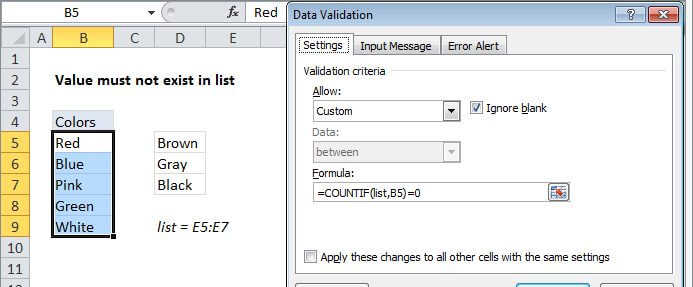
Data validation must not exist in list

Explanation

Note: Excel has a built-in data validation rules for dropdown lists. This page explains how to create a your own validation rule for lists when you don't want the dropdown behavior.

To allow only values from a list in a cell, you can use data validation with a custom formula based on the COUNTIF function.

In the example shown, the data validation applied to C5:C9 is:

=COUNTIF(colors,C5)>0

How this formula works

Data validation rules are triggered when a user adds or changes a cell value.

In this case, the COUNTIF function is part of an expression that returns TRUE when a value exists in a specified range or list, and FALSE if not.

The COUNTIF function simply counts occurrences of the value in the list. Any count greater than zero will pass validation.

Note: Cell references in data validation formulas are relative to the upper left cell in the range selected when the validation rule is defined, in this case C5.

Data validation exists in list

Generic formula 

=COUNTIF(list,A1)>0

Related formulas 

Data validation allow text only

Data validation only dates between

Data validation must not exist in list

Explanation

Note: Excel has a built-in data validation rules for dropdown lists. This page explains how to create a your own validation rule for lists when you don't want the dropdown behavior.

To allow only values from a list in a cell, you can use data validation with a custom formula based on the COUNTIF function.

In the example shown, the data validation applied to C5:C9 is:

=COUNTIF(colors,C5)>0

How this formula works

Data validation rules are triggered when a user adds or changes a cell value.

In this case, the COUNTIF function is part of an expression that returns TRUE when a value exists in a specified range or list, and FALSE if not.

The COUNTIF function simply counts occurrences of the value in the list. Any count greater than zero will pass validation.

Note: Cell references in data validation formulas are relative to the upper left cell in the range selected when the validation rule is defined, in this case C5.