Add business days to date
Generic formula
=WORKDAY(start_date,days,holidays)
Related formulas
Add workdays to date custom weekends
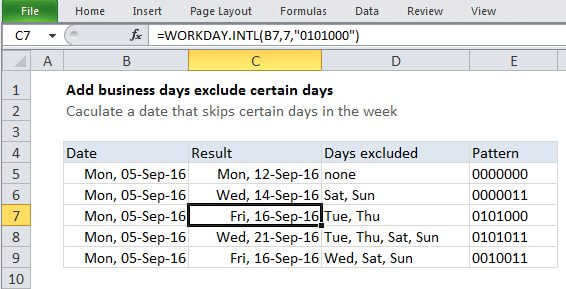
Add days exclude certain days of week
Explanation
If you need to add or subtract business days (workdays) to a date so that you can calculate a date in the future or past that skips weekends (and holidays), you can use the WORKDAY function. Holidays are optional.
In the example, the formula in D6 is:
=WORKDAY(B6,C6,B9:B11)
This adds 7 days to Tuesday, Dec 22 and returns Tuesday, January 5, 2016.
How this formula works
By default, the WORKDAY function will exclude weekends (Saturday and Sunday). In this case, we have also supplied a list of 3 holidays that all fall in the date range being calculated, which means both the weekends and holidays will be excluded. The following table shows which dates are excluded with and without holidays provided (shaded gray). The final dates returned by WORKDAY are highlighted in yellow
| No holidays | Holidays provided |
|---|---|
| Wed, 23-Dec-2015 | Wed, 23-Dec-2015 |
| Thu, 24-Dec-2015 | Thu, 24-Dec-2015 |
| Fri, 25-Dec-2015 | Fri, 25-Dec-2015 |
| Sat, 26-Dec-2015 | Sat, 26-Dec-2015 |
| Sun, 27-Dec-2015 | Sun, 27-Dec-2015 |
| Mon, 28-Dec-2015 | Mon, 28-Dec-2015 |
| Tue, 29-Dec-2015 | Tue, 29-Dec-2015 |
| Wed, 30-Dec-2015 | Wed, 30-Dec-2015 |
| Thu, 31-Dec-2015 | Thu, 31-Dec-2015 |
| Fri, 01-Jan-2016 | Fri, 01-Jan-2016 |
| Sat, 02-Jan-2016 | Sat, 02-Jan-2016 |
| Sun, 03-Jan-2016 | Sun, 03-Jan-2016 |
| Mon, 04-Jan-2016 | Mon, 04-Jan-2016 |
| Tue, 05-Jan-2016 | Tue, 05-Jan-2016 |
| Wed, 06-Jan-2016 | Wed, 06-Jan-2016 |
Subtract workdays
To subtract business from a date (instead of adding workdays) just use a negative value for days. For example to get a date 3 workdays before a date in A1, you can use:
=WORKDAY(A1,-3)