Excel TODAY Function
Summary

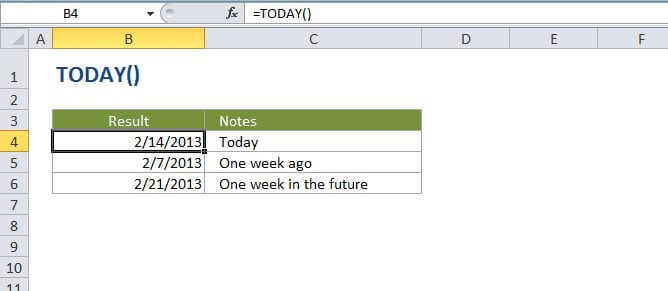
The Excel TODAY function returns the current date, updated continuously when a worksheet is changed or opened. The TODAY function takes no arguments. You can format the value returned by TODAY using any standard date format. If you need current date and time, use the NOW function.

Purpose

Get the current date

Return value

A serial number representing a particular date in Excel.

Syntax

=TODAY ()

Arguments

Usage notes

TODAY takes no parameters, but requires that you use empty parentheses ().

The value returned by TODAY will continually update each time the worksheet is recalculated (for example, each time a cell value is entered or changed). Use F9 to force the worksheet to recalculate and update the value.

If you need a static date that won't change, you can enter the current date using the keyboard shortcut Ctrl + Shift + ;


Excel TODAY Function

Summary

The Excel TODAY function returns the current date, updated continuously when a worksheet is changed or opened. The TODAY function takes no arguments. You can format the value returned by TODAY using any standard date format. If you need current date and time, use the NOW function.

Purpose

Get the current date

Return value

A serial number representing a particular date in Excel.

Syntax

=TODAY ()

Arguments

Usage notes

TODAY takes no parameters, but requires that you use empty parentheses ().

The value returned by TODAY will continually update each time the worksheet is recalculated (for example, each time a cell value is entered or changed). Use F9 to force the worksheet to recalculate and update the value.

If you need a static date that won't change, you can enter the current date using the keyboard shortcut Ctrl + Shift + ;