Convert text to date
Generic formula
=DATE(LEFT(text,4),MID(text,5,2),RIGHT(text,2))
Related formulas
Convert date to text
Convert text date dd/mm/yy to mm/dd/yy
Explanation
To convert text in an unrecognized date format to a proper Excel date, you can parse the text and assemble a proper date with a formula based on several functions: DATE, LEFT, MID, and RIGHT.
Note: Before you go the formula route, see below for other ways you might be able to get Excel to recognize text as dates without formulas.
In the example shown, the formula in C6 is:
=DATE(LEFT(B6,4),MID(B6,5,2),RIGHT(B6,2))
This formula extract the year, month, and day values separately, and uses the DATE function to assemble them into the date October 24, 2000.
Background
When you're working with data from another system, you might run into text values that represent dates, but are not understood as dates in Excel. For example, you might have text values like this:
| Text | Date represented |
| 20001024 | October 24, 2000 |
| 20050701 | July 1, 20115 |
| 19980424 | April 24, 1998 |
| 28.02.2014 | February 28, 2014 |
Excel won't recognize these text values as a date, so in order to create a proper date, you'll need parse the text into it's components (year, month, day) and use these to make a date with the DATE function.
How this formula works
The DATE function takes three arguments: year, month, and day. The LEFT function extracts the leftmost 4 characters and supplies this to DATE as the year. The MID function extracts characters 5-6 and supplies this to DATE as the month, and the RIGHT function extracts the rightmost 2 characters and supplies these to DATE as the day. The final result is a proper Excel date that can be formatted any way you like.
Another example
In row 8, the (unrecognized) date format is dd.mm.yyyy and the formula in C8 is:
=DATE(RIGHT(B8,4),MID(B8,4,2),LEFT(B8,2))
Add zero to fix dates
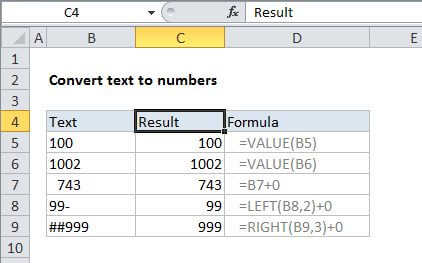
Sometimes, you'll encounter dates in a text format that Excel should recognize. In this case, you might be able to force Excel to convert the text values into dates by adding zero to the value. When you add zero, Excel will try to coerce text values to numbers. Since dates are just numbers, this trick is a great way to convert dates in text format that Excel really should understand.
To convert dates in place by adding zero, try Paste Special:
- Add a zero to an unused cell and copy to the clipboard
- Select the problematic dates
- Paste Special > Values > Add
To convert dates by adding zero in a formula, use:
=A1+0
where A1 contains an unrecognized date.
Text to columns to fix dates
Another way to get Excel to recognize dates is to use the Text to Columns Feature:
Select the column of dates, then try Data > Text to columns > Fixed > finish
This can sometimes fix everything at once.