Get month from date
Generic formula
=MONTH(date)
Related formulas
Get month name from date
Get year from date
Get day from date
Explanation
If you need to extract the month from a date, you can use the MONTH function. In the generic form of the formula above, the date must be in a form that Excel recognizes as a valid date.
Here's how the formula works:
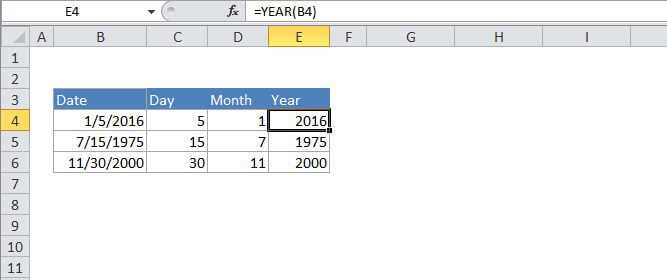
The MONTH function takes just one argument, the date from which you want to extract the month. In the example, the formula is:
=MONTH(B4)
B4 contains a date value for January 5, 2016. The MONTH function returns the number 1 representing the month( January) of the date. If you need to get the month name instead of the month number, see Get the month name from a date.
Note that you can use MONTH to extract the month from a day entered as text:
=MONTH("1/5/2016")
However, using text for dates can produce unpredictable results on computers using different regional date settings. In general it's better (and more flexible) to supply an address to a cell that already contains a valid date.