Create email address from name
Generic formula
=LOWER(LEFT(first)&last)&"@domain.com"
Related formulas
Get name from email address
Get domain name from URL
Get top level domain (TLD)
Get domain from email address
Create email address with name and domain
Strip protocol and trailing slash from URL
Explanation
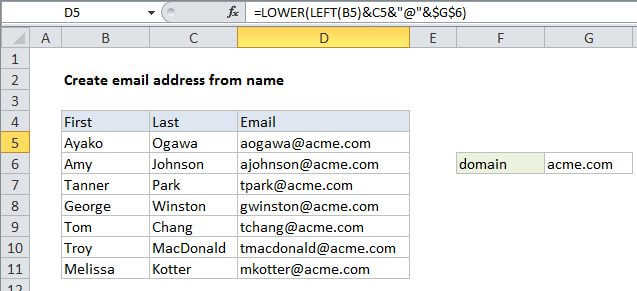
To build email addresses using first and last names, you can use a formula that concatenates values, with help from the LOWER and LEFT functions as needed.
In the example shown, the formula in D5 is:
=LOWER(LEFT(C5)&B5)&"@"&"acme.com"
How this formula works
For a name like "Tim Brown", this formula builds an email address like "tbrown@domain.com".
First, the LEFT function is used to get the first letter from the first name in column C. Usually, the LEFT function gets a "num_chars" value for the second argument, but the argument is optional and defaults to 1 if omitted.
LEFT(C5) // get first character from first name
The first letter of the first name is then joined to the last name using the concatenation operator (&), and the result is wrapped in the LOWER function, which forces all text to lower case.
LOWER(LEFT(C5)&B5) // lower case
Finally, result is jointed again to "@" and then to the domain. The domain is kept separate for convenience only. The formula could be written like this:
With a named range
To simply the formula, you could create a named range "domain" to hold the domain name, then rewrite the formula like this:
=LOWER(LEFT(first)&last)&domain
Changing the value in the named range will then update all email addresses at once.