Random date between two dates
Generic formula
=RANDBETWEEN(date1,date2)
Related formulas
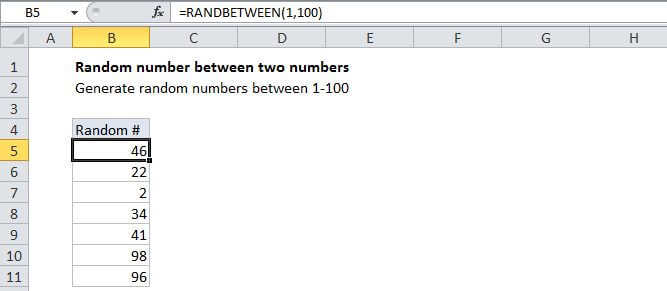
Random number between two numbers
Random text values
Random value from list or table
Random number from fixed set of options
Random date between two dates
Explanation
To generate random dates between two dates, you can use the RANDBETWEEN function, together with the DATE function.
In the example shown, the formula in B5 is:
=RANDBETWEEN(DATE(2016,1,1),DATE(2016,12,31))
This formula is then copied down from B5 to B11. The result is random dates between Jan 1, 2016 and Dec 31, 2016 (random dates in the year 2016).
How this formula works
The RANDBETWEEN function takes two numbers, a bottom and top number, and generates a random integer in between. Dates in Excel are serial numbers, so you can use the DATE function to create the lower number and the upper number. RANDBETWEEN then generates a number that falls between these two date values.
Notes:
- The result of this formula must be formatted as a date in order to display correctly.
- That the RANDBETWEEN function will generate new numbers whenever a change is triggered on the worksheet. That includes any edits to the worksheet, also also simply opening the workbook.
- To prevent random numbers from being calculated again, copy the formulas, then use Paste Special > Values to replace the formulas with their calculated values.
Random workdays
To generate random workdays, you can add the WORKDAY function like this:
=WORKDAY(RANDBETWEEN(date1,date2)-1,1)
The WORKDAY function ensures that the date returned is a working day, and not a weekend of (optionally) a holiday. Note however WORKDAY will shift dates that fall on weekends or holidays to the next working day, so you may see dates that extend beyond date2.