Random number between two numbers
Generic formula 

=RANDBETWEEN(lower,upper)

Related formulas 

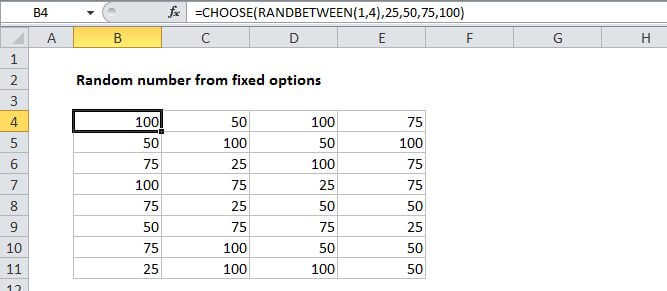
Random number from fixed set of options

Random date between two dates

Randomly assign data to groups

Random text values

Random value from list or table

Explanation

To generate random integers between two numbers, you can use the RANDBETWEEN function.

In the example shown, the formula in B5 is:

=RANDBETWEEN(1,100)

This formula is then copied down from B5 to B11. The result is random numbers between 1-100.

Note that the RANDBETWEEN function will generate new numbers whenever a change is triggered on the worksheet. That includes any edits to the worksheet, also also simply opening the workbook.

To prevent random numbers from being calculated again, copy the formulas, then use Paste Special > Values to replace the formulas with their calculated values.

Random number between two numbers

Generic formula 

=RANDBETWEEN(lower,upper)

Related formulas 

Random number from fixed set of options

Random date between two dates

Randomly assign data to groups

Random text values

Random value from list or table

Explanation

To generate random integers between two numbers, you can use the RANDBETWEEN function.

In the example shown, the formula in B5 is:

=RANDBETWEEN(1,100)

This formula is then copied down from B5 to B11. The result is random numbers between 1-100.

Note that the RANDBETWEEN function will generate new numbers whenever a change is triggered on the worksheet. That includes any edits to the worksheet, also also simply opening the workbook.

To prevent random numbers from being calculated again, copy the formulas, then use Paste Special > Values to replace the formulas with their calculated values.