Randomly assign data to groups
Generic formula 

=CHOOSE(RANDBETWEEN(1,3),"Group A","Group B","Group B")

Related formulas 

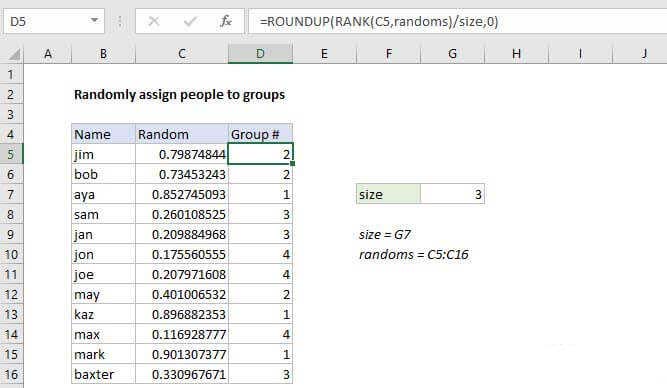
Randomly assign people to groups

Random number between two numbers

Random date between two dates

Random text values

Random value from list or table

Random number from fixed set of options

Explanation

To randomly people (or anything) to groups you can use the RANDBETWEEN function with the CHOOSE function. In the example shown, the formula in F3 is:

=CHOOSE(RANDBETWEEN(1,3),"A","B","C")

When copied down the column, this formula will generate a random group (A, B, or C) for each person in the list.

Note: this is a random approach that will allow groups of difference sizes. If you need a formula approach to randomly assign people to groups of a fixed size, see this formula and this video overview.

How this formula works

The RANDBETWEEN function generates random numbers between two integers. The CHOOSE function takes a number as the first argument, and uses that number to select the "nth" item from the following arguments.

So, in this formula, RANDBETWEEN generates a number between 1 and 3, this number is used to choose a group from the 3 following values: "A","B","C".

You can use this same approach any time you need make random assignments. It's especially useful when you you need to assign data to a limited number of text values.

Automatic recalculation

Be aware that RANDBETWEEN will re-calculate whenever there is any change to a workbook, or even when a workbook is opened. Once you have a set of random assignments, you may want to copy and paste the formulas as values to prevent further changes.

Randomly assign data to groups

Generic formula 

=CHOOSE(RANDBETWEEN(1,3),"Group A","Group B","Group B")

Related formulas 

Randomly assign people to groups

Random number between two numbers

Random date between two dates

Random text values

Random value from list or table

Random number from fixed set of options

Explanation

To randomly people (or anything) to groups you can use the RANDBETWEEN function with the CHOOSE function. In the example shown, the formula in F3 is:

=CHOOSE(RANDBETWEEN(1,3),"A","B","C")

When copied down the column, this formula will generate a random group (A, B, or C) for each person in the list.

Note: this is a random approach that will allow groups of difference sizes. If you need a formula approach to randomly assign people to groups of a fixed size, see this formula and this video overview.

How this formula works

The RANDBETWEEN function generates random numbers between two integers. The CHOOSE function takes a number as the first argument, and uses that number to select the "nth" item from the following arguments.

So, in this formula, RANDBETWEEN generates a number between 1 and 3, this number is used to choose a group from the 3 following values: "A","B","C".

You can use this same approach any time you need make random assignments. It's especially useful when you you need to assign data to a limited number of text values.

Automatic recalculation

Be aware that RANDBETWEEN will re-calculate whenever there is any change to a workbook, or even when a workbook is opened. Once you have a set of random assignments, you may want to copy and paste the formulas as values to prevent further changes.