Range contains specific text
Generic formula 

=COUNTIF(rng,"*"&value&"*")>0

Related formulas 

Value exists in a range

Range contains one of many values

Range contains one of many substrings

Cell contains specific text

Cell contains one of many things

Explanation

If you need to determine if a range or column contains specific text (a specific substring or partial text), you can use a formula based on the COUNTIF function with wildcards.

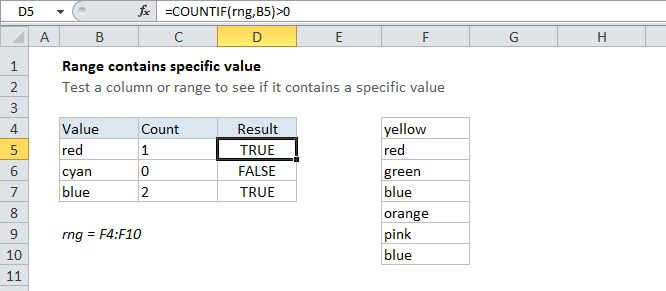
In the example shown, the formula in D5 is:

=COUNTIF(rng,"*"&D5&"*")>0

How this formula works

The COUNTIF function counts cells that meet supplied criteria, returning the number of occurrences found. If no cells meet criteria, COUNTIF returns zero.

The asterisk (*) is a wildcard for one or more characters. By concatenating asterisks before and after the value in D5, the formula will count the substring if it appears anywhere in any cell of the range.

Any positive number means the value was found, so you can use the greater than operator (>) to run a simple test on the result of COUNTIF to force a TRUE or FALSE result.

You can also wrap the formula inside an IF statement to force a specific result. For example, to return "Yes" or "No", use:

=IF(COUNTIF(range,"*"&value&"*"),"Yes","No")

Range contains specific text

Generic formula 

=COUNTIF(rng,"*"&value&"*")>0

Related formulas 

Value exists in a range

Range contains one of many values

Range contains one of many substrings

Cell contains specific text

Cell contains one of many things

Explanation

If you need to determine if a range or column contains specific text (a specific substring or partial text), you can use a formula based on the COUNTIF function with wildcards.

In the example shown, the formula in D5 is:

=COUNTIF(rng,"*"&D5&"*")>0

How this formula works

The COUNTIF function counts cells that meet supplied criteria, returning the number of occurrences found. If no cells meet criteria, COUNTIF returns zero.

The asterisk (*) is a wildcard for one or more characters. By concatenating asterisks before and after the value in D5, the formula will count the substring if it appears anywhere in any cell of the range.

Any positive number means the value was found, so you can use the greater than operator (>) to run a simple test on the result of COUNTIF to force a TRUE or FALSE result.

You can also wrap the formula inside an IF statement to force a specific result. For example, to return "Yes" or "No", use:

=IF(COUNTIF(range,"*"&value&"*"),"Yes","No")