Excel ISNA Function
Summary
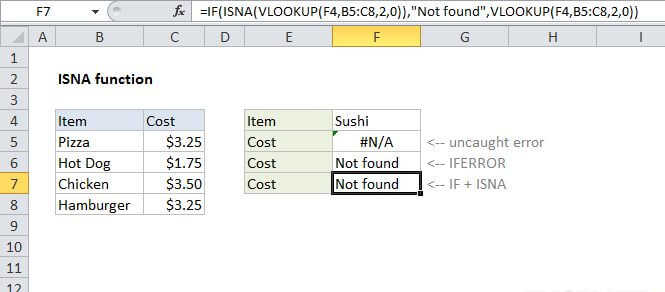
The Excel ISNA function returns TRUE when a cell contains the #N/A error and FALSE for any other value, or any other error type. You can use the ISNA function with the IF function test for an error and display a friendly message when it appears.
Purpose
Test for the #N/A error
Return value
A logical value (TRUE or FALSE)
Syntax
=ISNA (value)
Arguments
- value - The value to check if #N/A.
Usage notes
Use the ISNA function to check to check for #N/A errors. Normally, value is supplied as a cell reference. For example, if A1 contains #N/A, the following formula will return TRUE:
=ISNA(A1)
To explicitly force the #N/A error in a formula, you can use the NA function. The following will return true:
=ISNA(NA())
Notes:
- ISNA is part of a group of functions called the "IS functions", which are often used to test the result of formulas for errors.
- With Excel 2007+, the IFERROR function can provide simpler, less redundant error checking.
- With Excel 2013+, the IFNA function can trap and handle #N/A errors specifically.