Sum if cells contain specific text
Generic formula 

=SUMIF(range,"*text*",sum_range)

Related formulas 

Sum if begins with

Sum if not blank

Sum if cells are equal to

Sum if cells are not equal to

Sum if equal to either x or y

Explanation

To sum if cells contain specific text, you can use the SUMIF function with a wildcard.

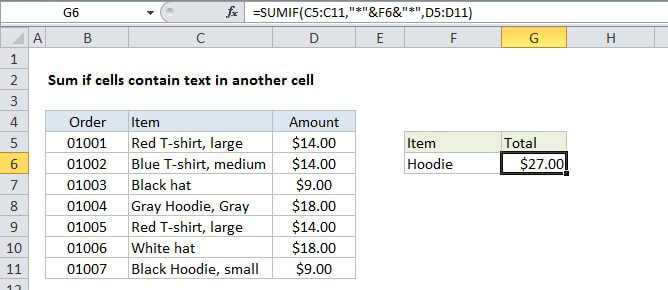
In the example shown, cell G6 contains this formula:

=SUMIF(C5:C11,"*t-shirt*",D5:D11)

This formula sums the amounts in column D when a value in column C contains "t-shirt". Note that SUMIF is not case-sensitive.

How the formula works

The SUMIF function supports wildcards. An asterisk (*) means "one or more characters", while a question mark (?) means "any one character".

These wildcards allow you to create criteria such as "begins with", "ends with", "contains 3 characters" and so on.

To match all items that contain "t-shirt", the criteria is "*t-shirt*". Note that you must enclose literal text and the wildcard in double quotes (""). 

Alternative with SUMIFS

You can also use the SUMIFS function. SUMIFS can handle multiple criteria, and the order of the arguments is different from SUMIF. The equivalent SUMIFS formula is:

=SUMIFS(D5:D11,C5:C11,"*t-shirt*")

Notice that the sum range always comes first in the SUMIFS function.

Sum if cells contain specific text

Generic formula 

=SUMIF(range,"*text*",sum_range)

Related formulas 

Sum if begins with

Sum if not blank

Sum if cells are equal to

Sum if cells are not equal to

Sum if equal to either x or y

Explanation

To sum if cells contain specific text, you can use the SUMIF function with a wildcard.

In the example shown, cell G6 contains this formula:

=SUMIF(C5:C11,"*t-shirt*",D5:D11)

This formula sums the amounts in column D when a value in column C contains "t-shirt". Note that SUMIF is not case-sensitive.

How the formula works

The SUMIF function supports wildcards. An asterisk (*) means "one or more characters", while a question mark (?) means "any one character".

These wildcards allow you to create criteria such as "begins with", "ends with", "contains 3 characters" and so on.

To match all items that contain "t-shirt", the criteria is "*t-shirt*". Note that you must enclose literal text and the wildcard in double quotes (""). 

Alternative with SUMIFS

You can also use the SUMIFS function. SUMIFS can handle multiple criteria, and the order of the arguments is different from SUMIF. The equivalent SUMIFS formula is:

=SUMIFS(D5:D11,C5:C11,"*t-shirt*")

Notice that the sum range always comes first in the SUMIFS function.