Excel IF Function
Summary
The IF function can perform a logical test and return one value for a TRUE result, and another for a FALSE result. For example, to "pass" scores above 70: =IF(A1>70,"Pass","Fail"). More than one condition can be tested by nesting IF functions. The IF function can be combined with logical functions like AND and OR.
Purpose
Test for a specific condition
Return value
The values you supply for TRUE or FALSE
Syntax
=IF (logical_test, [value_if_true], [value_if_false])
Arguments
- logical_test - A value or logical expression that can be evaluated as TRUE or FALSE.
- value_if_true - [optional] The value to return when logical_test evaluates to TRUE.
- value_if_false - [optional] The value to return when logical_test evaluates to FALSE.
Usage notes
Use the IF function to test for or evaluate certain conditions, and then react differently depending on whether the test was TRUE or FALSE.
For example, let's say you want to assign either "Pass" or "Fail" to students based on a test score. In that case, you need to test the sore itself (for each student) and then return either "Pass" or "Fail".
If you had a score in cell C6, and you wanted to test this score to see if is at least 70, you would use this:
=C6>=70
This translates as "C6 contains a value greater than or equal to 70". It will either be TRUE or FALSE, depending on the value in C6. You then supply a value that the IF function should return if the test is TRUE, and a value to use if the test is FALSE.
Putting it all together, you would use this formula:
=IF(C6>=70, "Pass", "Fail")
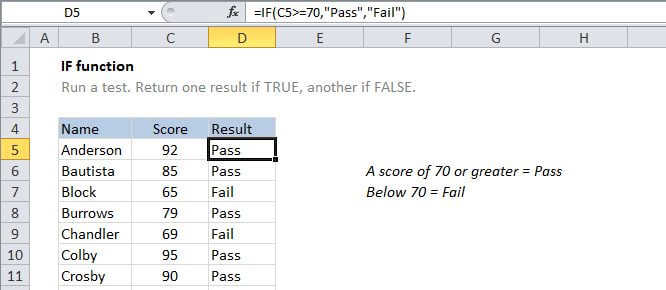
This is the formula that appears D6 in the example shown. When it is copied down the column, it will test every score and return the correct result.
Nested IF statements
You may here the term "Nested IF" or "Nested IF statement". This refers to using more than one IF function so that you can test for more conditions and return more possible results. Each IF statement needs to be carefully "nested" inside another so that the logic is correct.
For example, the following formula can be used to assign an grade rather than a pass / fail result:
=IF(C6<70,"F",IF(C6<75,"D",IF(C6<85,"C",IF(C6<95,"B","A"))))
Up to 64 IF functions can be nested. However, in general, you should consider other functions, like VLOOKUP or HLOOKUP for more complex scenarios, because they can handle more conditions in much more streamlined fashion.
To learn how to use VLOOKUP instead of nested IFs, see this video.
Logical operators
When you are constructing a test with IF, you can use any of the following logical operators:
| Comparison operator | Meaning | Example |
| = | equal to | A1=D1 |
| > | greater than | A1>D1 |
| >= | greater than or equal to | A1>=D1 |
| less than | A1<><> <> |
| <> | less than or equal to | A1<> |
| <> | not equal to | A1<>D1 |
Notes:
- If any of the arguments to IF are supplied as arrays, the IF function will evaluate every element of the array.
- To count things conditionally, use the COUNTIF or the COUNTIFS functions.
- To sum things conditionally, use the SUMIF or the SUMIFS functions.
Excel IF Function
Summary
The IF function can perform a logical test and return one value for a TRUE result, and another for a FALSE result. For example, to "pass" scores above 70: =IF(A1>70,"Pass","Fail"). More than one condition can be tested by nesting IF functions. The IF function can be combined with logical functions like AND and OR.
Purpose
Test for a specific condition
Return value
The values you supply for TRUE or FALSE
Syntax
=IF (logical_test, [value_if_true], [value_if_false])
Arguments
- logical_test - A value or logical expression that can be evaluated as TRUE or FALSE.
- value_if_true - [optional] The value to return when logical_test evaluates to TRUE.
- value_if_false - [optional] The value to return when logical_test evaluates to FALSE.
Usage notes
Use the IF function to test for or evaluate certain conditions, and then react differently depending on whether the test was TRUE or FALSE.
For example, let's say you want to assign either "Pass" or "Fail" to students based on a test score. In that case, you need to test the sore itself (for each student) and then return either "Pass" or "Fail".
If you had a score in cell C6, and you wanted to test this score to see if is at least 70, you would use this:
=C6>=70
This translates as "C6 contains a value greater than or equal to 70". It will either be TRUE or FALSE, depending on the value in C6. You then supply a value that the IF function should return if the test is TRUE, and a value to use if the test is FALSE.
Putting it all together, you would use this formula:
=IF(C6>=70, "Pass", "Fail")
This is the formula that appears D6 in the example shown. When it is copied down the column, it will test every score and return the correct result.
Nested IF statements
You may here the term "Nested IF" or "Nested IF statement". This refers to using more than one IF function so that you can test for more conditions and return more possible results. Each IF statement needs to be carefully "nested" inside another so that the logic is correct.
For example, the following formula can be used to assign an grade rather than a pass / fail result:
=IF(C6<70,"F",IF(C6<75,"D",IF(C6<85,"C",IF(C6<95,"B","A"))))
Up to 64 IF functions can be nested. However, in general, you should consider other functions, like VLOOKUP or HLOOKUP for more complex scenarios, because they can handle more conditions in much more streamlined fashion.
To learn how to use VLOOKUP instead of nested IFs, see this video.
Logical operators
When you are constructing a test with IF, you can use any of the following logical operators:
| Comparison operator | Meaning | Example |
| = | equal to | A1=D1 |
| > | greater than | A1>D1 |
| >= | greater than or equal to | A1>=D1 |
| less than | A1<><> <> |
| <> | less than or equal to | A1<> |
| <> | not equal to | A1<>D1 |
Notes:
- If any of the arguments to IF are supplied as arrays, the IF function will evaluate every element of the array.
- To count things conditionally, use the COUNTIF or the COUNTIFS functions.
- To sum things conditionally, use the SUMIF or the SUMIFS functions.