Excel IFNA Function
Summary
The Excel IFNA function returns a custom result when a formula generates the #N/A error, and a standard result when no error is detected. IFNA is an elegant way to trap and handle #N/A errors specifically without catching other errors.
Purpose
Trap and handle #N/A errors
Return value
The value supplied for #N/A errors
Syntax
=IFNA (value, value_if_na)
Arguments
- value - The value, reference, or formula to check for an error.
- value_if_na - The value to return if #N/A error is found.
Usage notes
Use the IFNA function to trap and handle #N/A errors that may arise in formulas, especially those that perform lookups using MATCH, VLOOKUP, HLOOKUP, etc. The IFNA function will only handle #N/A errors, which means other errors that may be generated by a formula will still display.
You can also use the IFERROR function to catch the #N/A errors, but IFERROR will also catch other errors as well.
IFNA with VLOOKUP
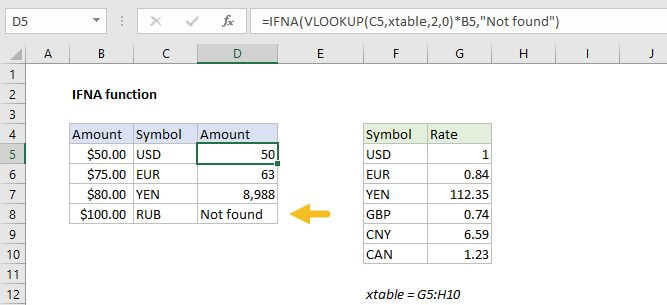
A typical example of IFNA used to trap #N/A errors with VLOOKUP will look like this:
=IFNA(VLOOKUP(A1,table,2,0),"Not found")
Notes:
- If value is empty, it is evaluated as an empty string ("") and not an error.
- If value_if_na is supplied as an empty string (""), no message is displayed when an error is detected.