Excel IFS Function
Summary
The Excel IFS function runs multiple tests and returns a value corresponding to the first TRUE result. Use the IFS function to evaluate multiple conditions without multiple nested IF statements. IFS allows shorter, easier to read formulas.
Purpose
Test multiple conditions, return first true
Return value
Value corresponding with first TRUE result
Syntax
=IFS (test1, value1, [test2, value2], ...)
Arguments
- test1 - First logical test.
- value1 - Result when test1 is TRUE.
- test2, value2 - [optional] Second test/value pair.
Usage notes
Use the IFS function to test multiple conditions and return a value corresponding to the first TRUE result. Unlike the IF function, IFS allows you to test more than one condition without nesting. This makes makes formulas with many conditions easier to read.
Arguments are entered in test/value pairs. Each test (condition) represents a logical test that returns TRUE or FALSE, and each value is associated with the previous test. A value is returned by IFS only when its test returns TRUE, and the first test with a TRUE result "wins". The IFS function supports up to 127 conditions.
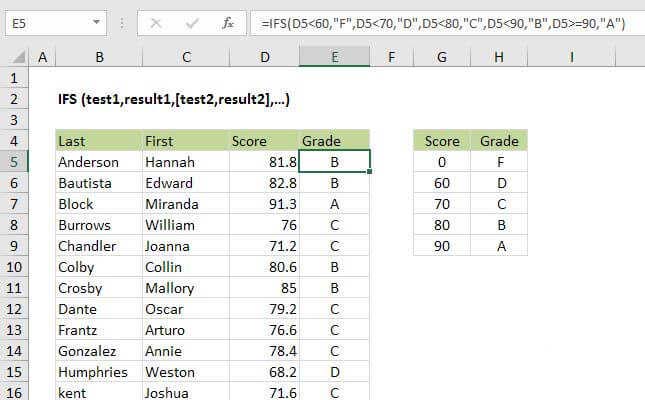
In the example shown the formula in E5 is:
=IFS(D5<60,"F",D5<70,"D",D5<80,"C",D5<90,"B",D5>=90,"A")
Note: the IFS function is new in Excel 2016 on Windows, and won't work in other versions of Excel.
Notes:
- There is no way to set a default if all tests return FALSE (i.e. a value if false). Instead, enter TRUE for the last test, and then a value to return as a default value if FALSE.
- All logical tests must return TRUE or FALSE. Other results will case IFS to return a #VALUE! error.
- If no logical tests return TRUE, IFS returns the #N/A error.